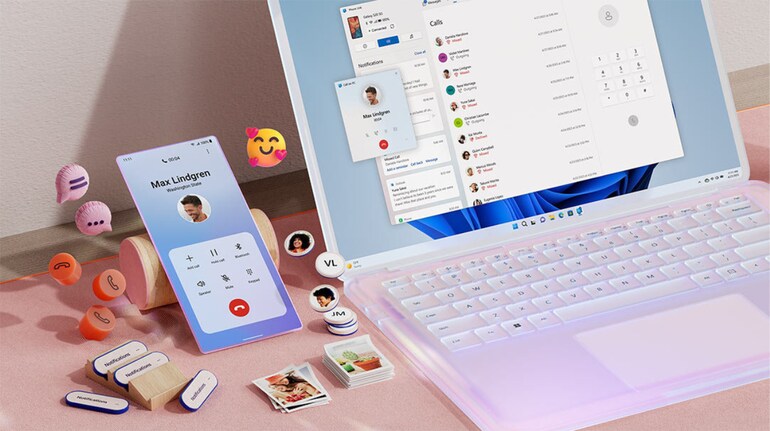
After reading the title, many of you would wonder: “Why would someone want to use their Windows PC to call people when they already have a smartphone for that?”. Well, in answer to that question, we’ll just say that making a phone call from your Windows PC is a nice and smart option to have if you work for long hours on your computer. It saves you time and also, precludes the possibility of scrolling down your social media or news feeds on the phone at work, thus helping you focus better on the tasks.
In this how-to guide, we’ll focus on Android users who would like to learn to make a phone call from their Windows PC.
How to make a phone call from your Windows PC if you are an Android user
Here are the steps to call someone directly from your Windows PC if you are an Android user:
2. Now, search for the ‘Phone Link’ app in your Windows PC taskbar. If you don’t find it, you can install the Phone Link app by going to this link-
https://www.microsoft.com/en-in/windows/sync-across-your-devices
If you don’t have the Phone Link app already installed on your Windows PC, one other way to install it is to go to ‘Settings’ on your Windows PC and search for ‘Phone Link’. You’ll see the option of ‘enable or disable Phone Link’. Enable it and the Phone Link download will start. After the Phone Link app gets downloaded, open it from 'Setting's itself by choosing the option ‘Open Phone Link’.
3. In the new Phone Link window that opens up, select ‘Android’.
4. Next, you’ll be asked to sign in to your Microsoft account. Do that if you haven't already.
5. Scan the QR code that appears in the next window using Google Lens on your Android phone. You’ll see a redirect link on your phone.
6. Tap the link on your phone, and it will take you to the ‘Link to Windows’ app in the Google Play Store. Install the ‘Link to Windows’ app on your smartphone.
7. Tap ‘Continue’ on the next window on your Android phone. It will link your Android phone to your Microsoft account.
8) A code will appear on your Windows PC. Enter that code on your Android phone.
9) Next, enter your Microsoft account password on your Android phone
10) On your Android phone, give all the permissions asked . You’ll be asked if you want to run the app always in the background. Select ‘Allow’ for the time being. You can change it later by going to Settings> Apps.
11) Your Android phone screen will now show the message “device linking complete”. Tap ‘Done’ and check your Windows PC.
12) Click/tap ‘Continue’ on your Windows PC. That’s it. The Phone Link app on Windows is now linked to your Android device. If you want to change the Android device, you can do so by heading over to the Phone Link settings.
13) To make a call from your Windows PC, switch on the Bluetooth of both your Windows PC and Android smartphone and pair the devices. Tap ‘Set up’ on your PC. Next, you will have to enable permissions from your Android phone.
For successful pairing, your Android phone would receive a code, asking you to use it to pair with your Windows PC. Both the codes should match. If the devices don’t pair immediately, open Bluetooth settings on both, search for new Bluetooth devices and then pair.
14) Once the pairing is complete, you will see your phone contacts and call history on the Phone Link app. Now, you can search for a contact and call them from your Windows PC. Just make sure your phone remains in the Bluetooth range.
If, for some reason, pairing between your Windows PC and Android phone is unsuccessful, turn off Bluetooth for both, remove and forget the devices on your phone and PC, turn on Bluetooth again and try to pair again.
If you are someone who is looking to cut down on their smartphone usage, then keeping your phone out of reach for long periods is the key. And if you are worried about others having difficulty reaching you, then that’s what our how-to would help you accomplish.


Discover the latest Business News, Sensex, and Nifty updates. Obtain Personal Finance insights, tax queries, and expert opinions on Moneycontrol or download the Moneycontrol App to stay updated!
Find the best of Al News in one place, specially curated for you every weekend.
Stay on top of the latest tech trends and biggest startup news.