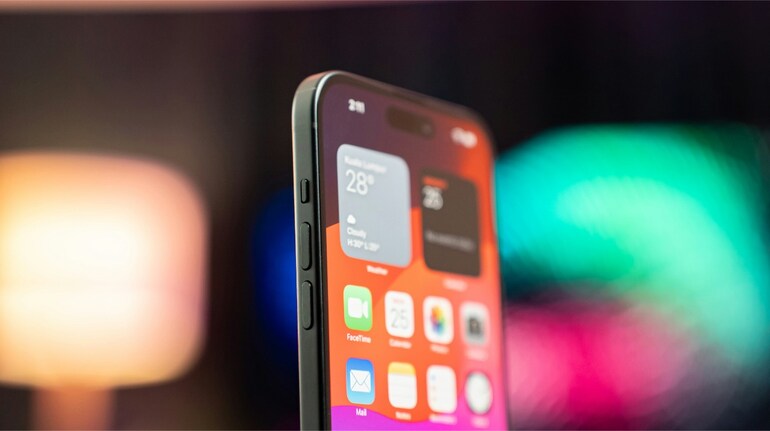

With the launch of the iPhone 17 series and the iPhone Air, Apple has quietly rethought how the front camera works. The new 18-megapixel Center Stage camera uses a square sensor rather than the traditional rectangular layout. While this may sound like a small hardware tweak, it has a noticeable impact on everyday shooting.
Because the sensor is square, the front camera is no longer locked to a single orientation based on how you hold the phone. Whether you are holding your iPhone vertically or horizontally, you can switch between portrait and landscape framing instantly using on-screen controls. The phone itself does not need to move, which makes a big difference in real-world use.
This is especially useful for selfies, group photos, and front-facing videos where stability matters. You can hold the phone in the most comfortable position, keep your framing steady, and still decide later how you want the final shot to look. For creators, vloggers, and anyone who frequently switches between vertical and horizontal content, this removes a lot of friction.
Apple has integrated this feature directly into the Camera app, keeping the experience familiar. There is no special mode to enable and no separate settings menu to dig through. If your device supports the new Center Stage hardware, the controls simply appear when you switch to the front camera.
How to rotate the Center Stage front camera on iPhone 17
Start by opening the Camera app on your iPhone. Once the app launches, tap the circular arrows icon in the bottom-right corner to switch from the rear camera to the front-facing selfie camera. After that, choose either Photo or Video mode from the selector at the bottom of the screen, depending on what you want to capture.
Inside the viewfinder, you will notice a new orientation rotation icon. Tapping this icon instantly switches the framing between portrait and landscape, without requiring you to rotate the phone itself. The preview updates in real time, so you can immediately see how your composition changes.
You can also adjust the framing further by tapping the zoom icon with two arrows inside the viewfinder. This allows you to zoom in or out while keeping the phone steady. Once everything is lined up, press the shutter button to take a photo or start recording video. The entire process is designed to be quick and interruption-free.
One thing to be aware of is how this interacts with Center Stage. If you manually zoom using the on-screen controls, Center Stage tracking is temporarily disabled. To restore automatic framing and subject tracking, you need to exit the Camera app completely and relaunch it. This behaviour is intentional and helps maintain predictable framing when zoom is applied.
The ability to rotate framing without moving the phone may not sound dramatic, but it changes how naturally the front camera fits into everyday use. It encourages quick captures, reduces accidental shakes, and makes the iPhone feel more adaptable in spontaneous moments.
For users who want even finer control, Apple also offers options to manage Center Stage behaviour, including disabling auto-rotation entirely. Those controls live outside the main camera interface, but for most people, the default experience will simply feel easier and more intuitive than before.


Discover the latest Business News, Sensex, and Nifty updates. Obtain Personal Finance insights, tax queries, and expert opinions on Moneycontrol or download the Moneycontrol App to stay updated!
Find the best of Al News in one place, specially curated for you every weekend.
Stay on top of the latest tech trends and biggest startup news.