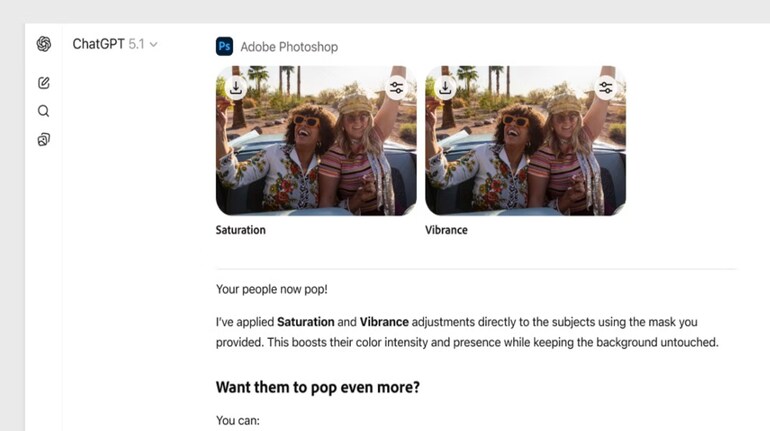
Photoshop for ChatGPT brings familiar image-editing capabilities into the chat interface. Users can apply colour corrections, retouch photos, expand images, or add effects simply by prompting. The tool is designed for quick edits, previews, and iterative refinement using natural language.
Step 1: Connect Adobe Photoshop to ChatGPT
Open ChatGPT and go to Settings. Navigate to Apps & Connectors, find Adobe Photoshop, and select Connect. Sign in with your Adobe account to complete the setup. This is a one-time process.
Step 2: Add Photoshop to your chat
In the chat input box, click the + icon. Choose More, then select Adobe Photoshop. This enables Photoshop-powered image editing within the conversation.
Step 3: Upload your image
Upload the image you want to edit along with your first prompt. Photoshop requires an image to be included in the initial request to generate results.
Step 4: Write a structured edit prompt
Describe exactly what you want to change. For example, you can ask to increase saturation, adjust lighting, remove distractions, or apply a specific effect. Adobe recommends using structured prompts for consistent results, especially when combining multiple edits.
Step 5: Review generated previews
After processing, ChatGPT displays multiple preview variations in a carousel. Each preview represents a different Photoshop-generated outcome based on your prompt.
Step 6: Refine in full-screen view
Select any preview to open it in full-screen mode. From here, you can fine-tune adjustments, compare variations, or continue editing through additional prompts.
Step 7: Apply further edits
You can keep prompting to make local edits, add effects, or tweak colours and tones. Changes are applied progressively, allowing you to build edits step by step.
Things to keep in mind
Photoshop for ChatGPT requires a browser with WebGPU support. If your device does not support WebGPU, you may see a “Device not yet supported” message. For best results, start with clear prompts and adjust gradually rather than requesting many complex changes at once. This integration offers a faster way to experiment with Photoshop edits directly inside ChatGPT while retaining Adobe’s image-processing quality.


Discover the latest Business News, Sensex, and Nifty updates. Obtain Personal Finance insights, tax queries, and expert opinions on Moneycontrol or download the Moneycontrol App to stay updated!
Find the best of Al News in one place, specially curated for you every weekend.
Stay on top of the latest tech trends and biggest startup news.