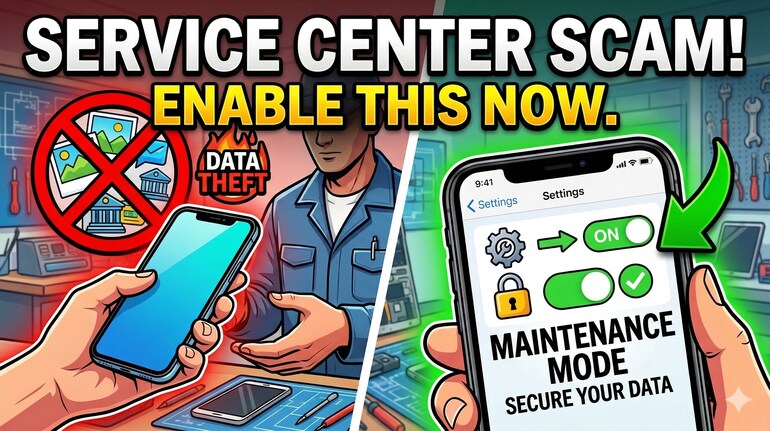

While the world is flooded with all sorts of scams—banking scams, phishing scams, data theft scams, and the list is endless—there is one situation where we literally hand over our data to someone and even share the phone’s security code. You might think this cannot be true. Nobody would be that naive in today’s world.
Well, you are probably right. But that assumption becomes irrelevant the moment you hand over your device to a service centre or even a local repair shop.
And, when you give the phone for service or repair -- the service person often ask for your PIN, Password or in fact, they even ask you to remove it altogether. And, what makes this worse is that they write the PIN on a paper and then wrap the phone with it.
This practice has raised concerns among cybersecurity experts because it can expose personal data stored on the device.
The issue is commonly referred to as the “service center scam,” where sensitive information may be accessed or copied during the repair process.
It's just phone's passcode or PIN? What could go wrong?
The answer: Perhaps everything.
Let's understand this first:
A smartphone contains photographs, documents, emails, financial apps, and saved passwords. When you share the unlock PIN, technicians gain full access to the operating system and its files. If proper safeguards are not used, this access can allow someone to browse personal media, view messages, copy files to external storage devices, or access logged-in accounts such as email and banking apps.
So, what's the solution?
The solution: Maintenance mode, Repair mode, or Accessibility mode
To reduce this risk, smartphone manufacturers have introduced special software modes that allow technicians to test hardware components without accessing user data. These modes temporarily hide personal files and apps while still enabling diagnostic checks.
Samsung devices: Enable maintenance mode
Samsung smartphones running One UI offer a feature called Maintenance Mode designed for service situations. When enabled, the phone creates a separate environment that hides user data.
Steps to enable Maintenance Mode:
Open Settings → Tap Device care → Select Maintenance Mode → Tap Turn on → Restart the device.
Once activated, technicians can test the camera, battery, speakers, touchscreen, and connectivity, but they cannot access photos, messages, or installed applications.
Google Pixel devices: Use repair mode
Google offers Repair Mode on Pixel smartphones running recent Android versions. This feature isolates personal information during servicing.
Steps to enable Repair Mode:
Open Settings → Tap System → Select Repair Mode → Enter the device PIN → Confirm and restart.
Repair Mode blocks access to apps, accounts, and stored files while allowing technicians to verify hardware functionality.
Apple iPhone: Enable repair mode through Apple diagnostics
Apple introduced a Repair Mode feature for iPhones running newer versions of iOS. The feature prepares the device for servicing while keeping Find My active and protecting personal data.
Steps to enable iPhone Repair Mode:
Open Settings → Tap General → Select Transfer or Reset iPhone → Tap Prepare for Repair → Follow the on-screen instructions.
This process locks personal data while allowing Apple or authorised service providers to run diagnostic checks.
Refer to the table for enabling this mode on your smartphone.
| Brand | Feature name | Where to find it |
|---|---|---|
| Samsung | Maintenance Mode | Settings → Battery and device care / Device care → Maintenance Mode |
| Google Pixel | Repair Mode | Settings → System → Repair Mode |
| Apple iPhone | Prepare for Repair / Repair Mode | Settings → General → Transfer or Reset iPhone → Prepare for Repair |
| OnePlus | Repair Mode | Settings → Privacy → Repair Mode |
| Realme | Repair Mode | Settings → Permissions & Privacy → Repair Mode |
| Xiaomi / Redmi | Repair Mode | Settings → Privacy Protection → Repair Mode |
| Poco | Repair Mode | Settings → Privacy Protection → Repair Mode |
| Vivo | Repair Mode | Settings → Privacy → Repair Mode |
| iQOO | Repair Mode | Settings → Privacy → Repair Mode |
You have an old smartphone. Then what?
Okay, your phone is old and does not have any such feature -- unlikely -- but if it does not have, then the only option you have is to perform a backup and factory reset before handing the device to a technician. Back up contacts, photos, and files to a computer or cloud storage, then erase the device from the settings menu.
Additional precautions before submitting a phone for repair
Remove the SIM card and SD card from the device.
Log out of email, banking, and payment apps.
Disable saved payment methods.
Note down the IMEI number of the phone.
Using repair or maintenance modes ensures technicians can test hardware components without accessing personal files. Activating these features before submitting a smartphone for service helps reduce the risk of data theft or misuse of personal information.


Discover the latest Business News, Sensex, and Nifty updates. Obtain Personal Finance insights, tax queries, and expert opinions on Moneycontrol or download the Moneycontrol App to stay updated!
Find the best of Al News in one place, specially curated for you every weekend.
Stay on top of the latest tech trends and biggest startup news.