




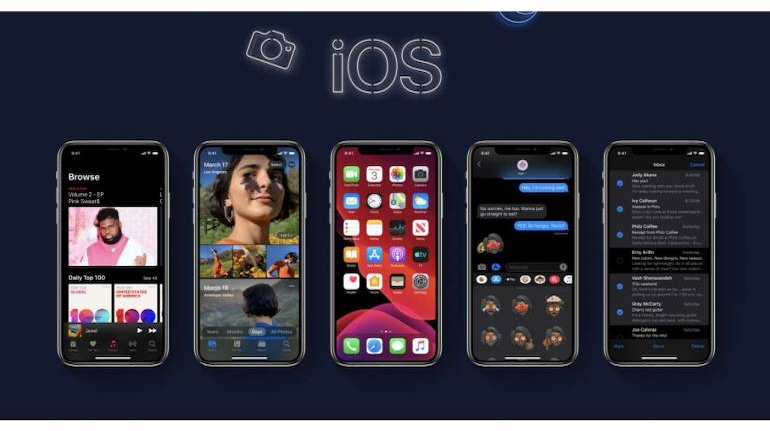
Apple has revamped the App Store in iOS 13. The new App Store supports Dark Mode and also introduces a new tab called ‘Arcade’ for the gaming-subscription service. Apple has also removed the ‘Updates’ tab, which may make you wonder how to update your apps.
Apple has now placed the updates section on the top-right corner of the App Store. The ‘Updates’ section is hidden in the user icon and can be accessed from all the tabs in the App Store.
To check if you have any app updates pending,
You can choose to automatically or manually download these updates as well. Users can:
Further, Apple also allows for capping the download size over mobile data. In the same ‘iTunes & App Store’ window, look for ‘Mobile Data’. Tap on ‘App Downloads’ and select one of the three options.
‘Always Ask’ would mean that the App Store would ask for user permission always before downloading or updating an app over mobile data.
The ‘Ask if over 200MB’ option would mean that apps would download or update automatically over mobile data if their file size is 200MB or below.
Lastly, ‘Always Allow’ would mean that users give the App Store to download or update apps over mobile data, regardless of the file size.
Also Read: Apple iOS 13: How to automatically close inactive tabs in Safari on your iOS device


Discover the latest Business News, Sensex, and Nifty updates. Obtain Personal Finance insights, tax queries, and expert opinions on Moneycontrol or download the Moneycontrol App to stay updated!
Find the best of Al News in one place, specially curated for you every weekend.
Stay on top of the latest tech trends and biggest startup news.