- My Alerts
- Go Ad-Free
-
My Account












How to use your Apple Watch as a remote shutter for iPhone
Apple Watch can act as a hands-free remote shutter for your iPhone camera using the built-in Camera Remote app. It lets you frame shots through a live view, control zoom, flash, timers, and review photos instantly, all without touching the phone. Here’s a simple, practical guide on how to click photos from your watch and save them directly to your iPhone gallery.




1/5
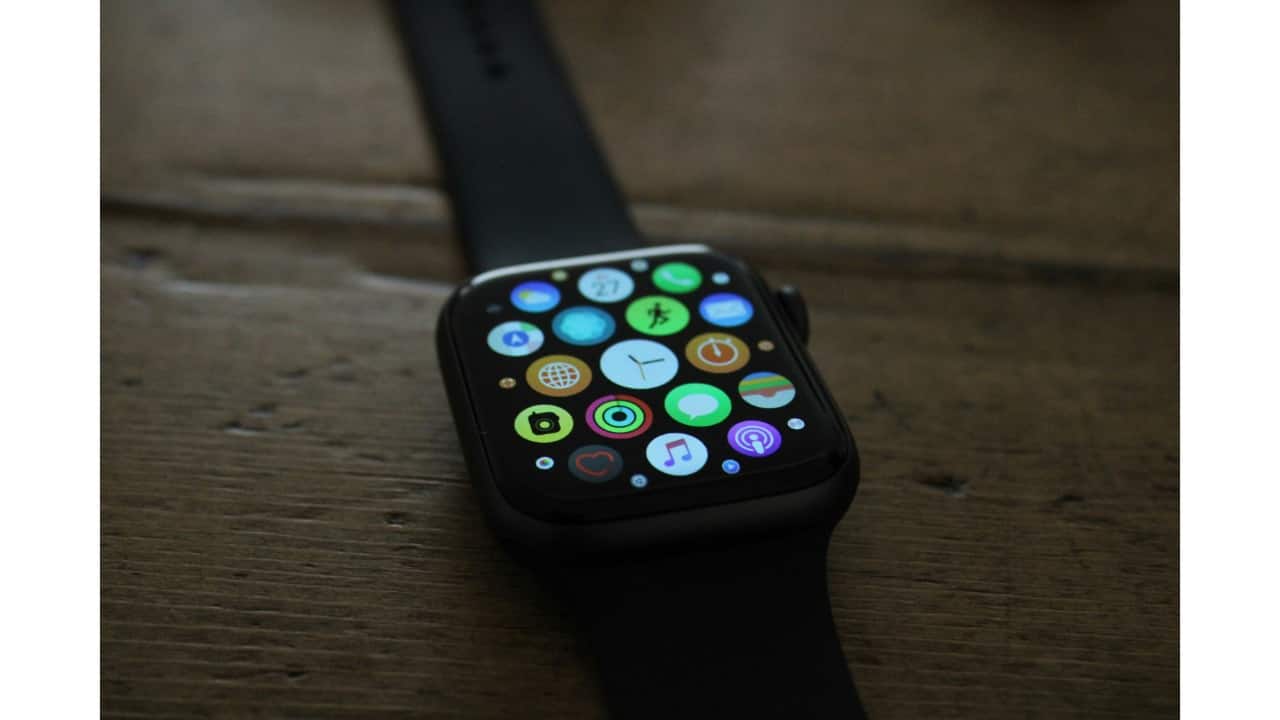
Your Apple Watch already has a built-in camera controller. Press the crown button to open your apps and look for the Camera Remote app. Tap it. Your iPhone camera will turn on automatically. No setup needed if both devices are already connected and working normally.
2/5
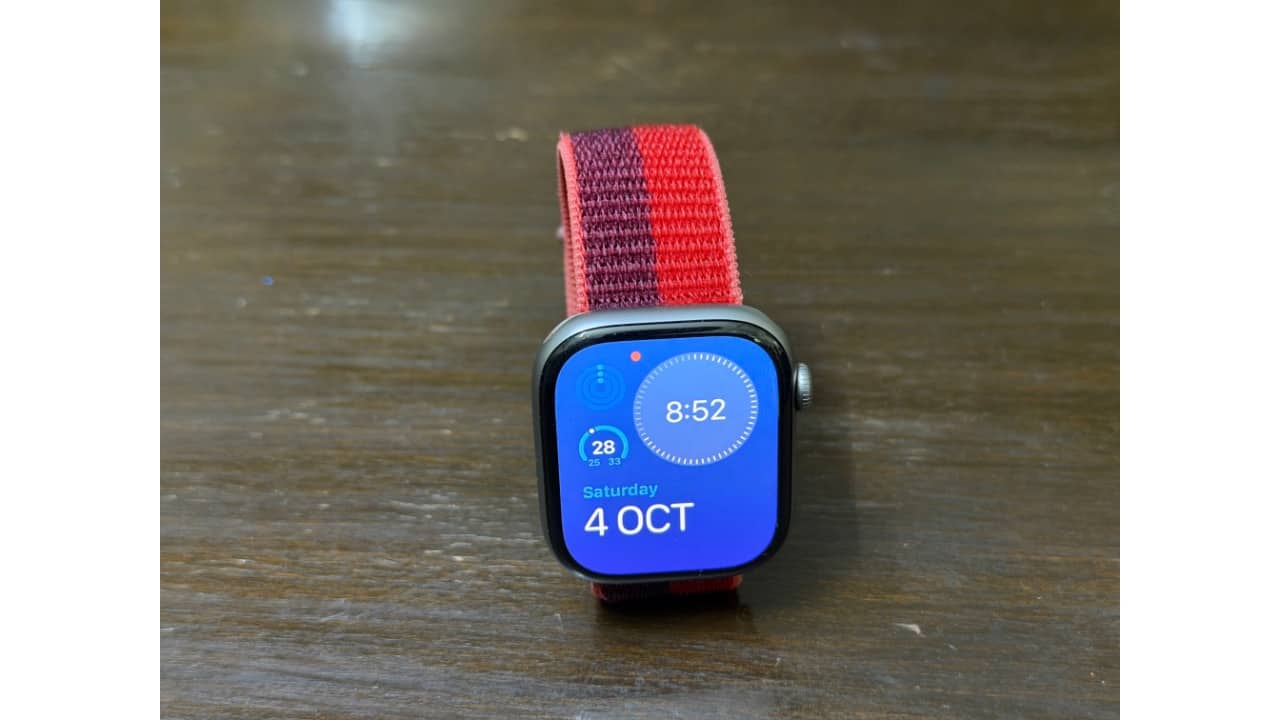
Once the camera opens, you’ll see a live view on your watch screen. This helps you frame the shot without touching the phone. Place your iPhone on a stand, table, or any stable surface. You can switch between front and back camera from the watch itself.
3/5
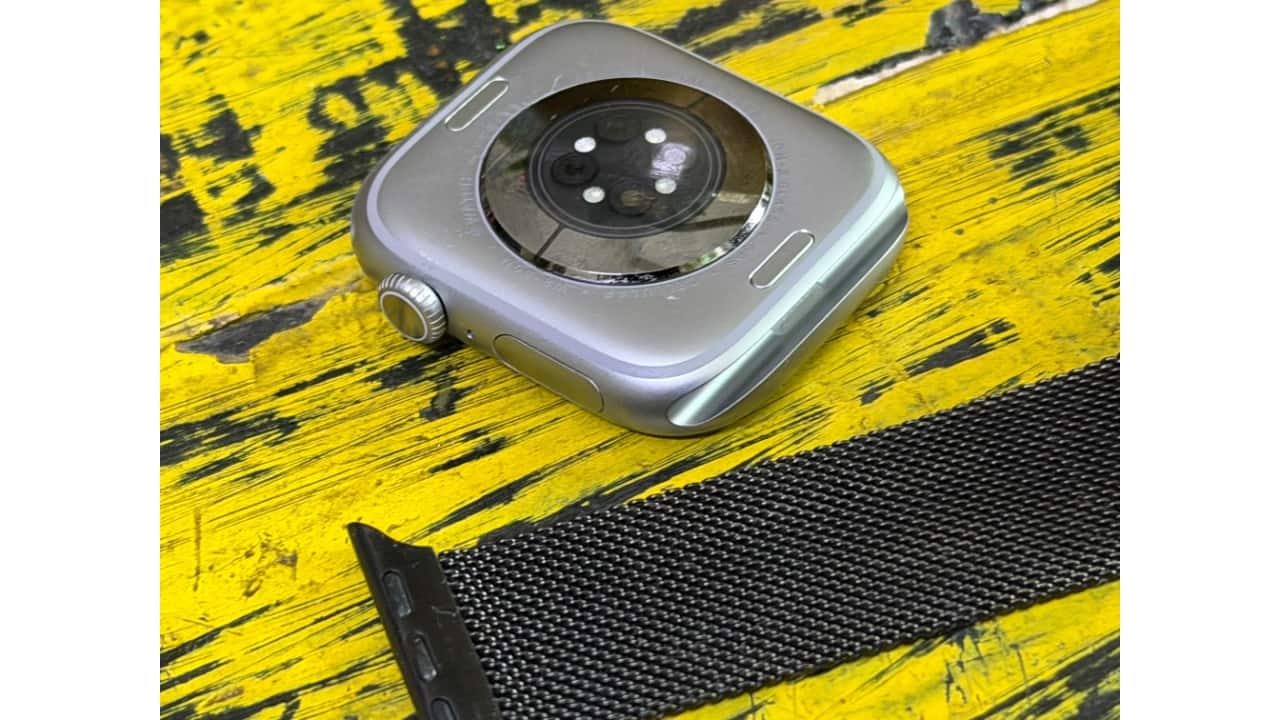
To click a photo, tap the white shutter button on your watch. It triggers instantly. If you want a slight delay, tap the three-dot menu and choose the 3-second timer. This gives you time to adjust your pose or hand before the picture is taken.
4/5
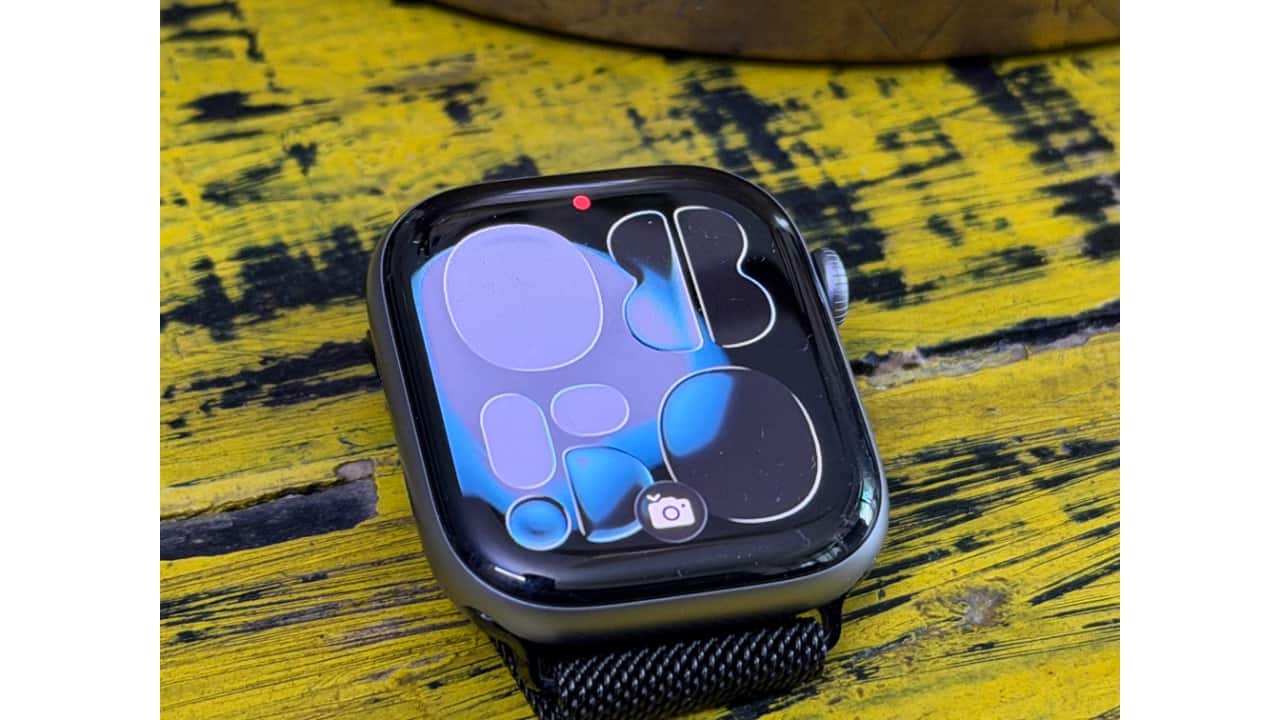
The watch also lets you check zoom and flash. Use the same three-dot menu to turn flash on or off. Rotate the digital crown to zoom in or out smoothly. It’s great for group photos, night shots, or situations where the phone is placed a little far away.
5/5
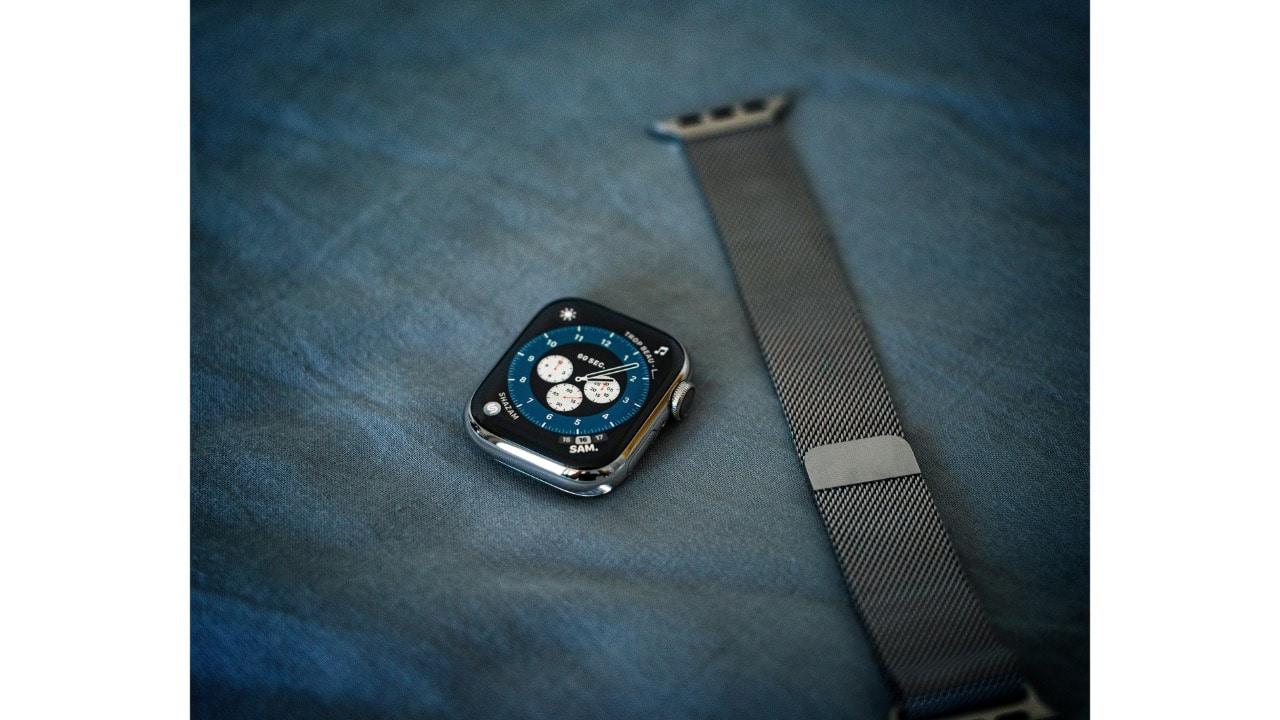
Every new photo clicked appears as a small preview on the watch. Tap it to review. The photo saves directly in your iPhone gallery like any normal picture. This feature is super helpful when taking steady shots or clicking pictures without asking someone else to press the button
Discover the latest Business News, Budget 2025 News, Sensex, and Nifty updates. Obtain Personal Finance insights, tax queries, and expert opinions on Moneycontrol or download the Moneycontrol App to stay updated!



