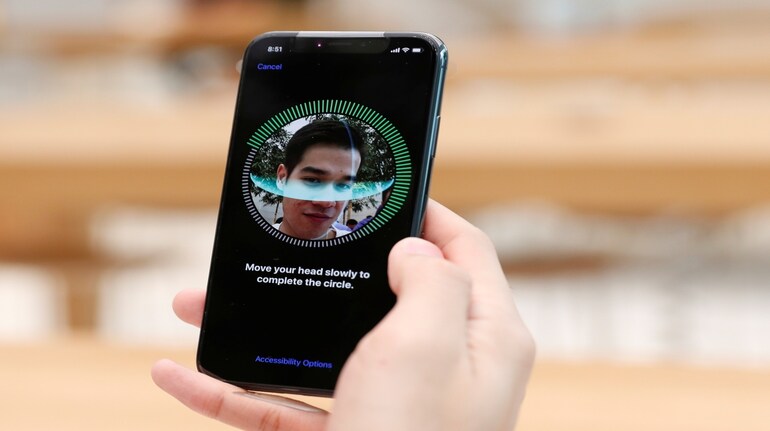

Many iPhone users report inconsistent Face ID behaviour. It may unlock instantly at times, then fail repeatedly moments later without any obvious reason. These issues tend to surface when a user’s appearance changes, lighting conditions vary, or the phone is held at an angle Face ID was not originally trained to recognise. While this can feel like a hardware problem, iOS includes a built-in option specifically meant to address these situations.
Apple offers a setting called Alternate Appearance within Face ID controls. The purpose of this feature is not widely known, but it can significantly improve Face ID reliability for users who experience frequent recognition failures.
What Alternate Appearance actually does
When Face ID is first set up, the system creates a detailed facial map based on a single scan. Although Face ID can learn gradually over time, it still relies heavily on that original data. Alternate Appearance allows users to add a second complete facial scan under different conditions.
With two full facial profiles to reference, Face ID can compare a broader range of facial data. This helps the system recognise you more consistently when your look changes slightly or when the phone is not positioned in the ideal way. Importantly, this feature is not meant to let another person unlock your phone. Apple states clearly that Alternate Appearance is designed only for variations of the same user.
The setting is most useful for people whose appearance changes often. This includes users who regularly wear makeup, glasses, facial hair, head coverings or even those who frequently unlock their phone while lying down or holding it off-centre.
How to set up Alternate Appearance
To enable the feature, open the Settings app and go to Face ID & Passcode. After entering your device passcode, scroll down until you see the option labelled Set Up an Alternate Appearance.
The setup process mirrors the standard Face ID scan. You will be asked to position your face within a frame and slowly move your head in a circle so the system can capture different angles. Apple recommends holding the phone roughly 25 to 30 centimetres from your face during the scan.
For best results, you should complete the scan in the conditions that normally cause Face ID to fail. For example, wear the glasses you use daily, apply makeup if that affects recognition, or hold the phone at an angle that often triggers errors. This gives Face ID a more realistic second reference rather than an idealised scan.
Other Face ID options worth checking
If you frequently wear face coverings, iOS also includes a Face ID with a Mask option. This allows the phone to authenticate using features around the eyes, improving unlock reliability without requiring full facial visibility. This setting can be enabled from the same Face ID & Passcode menu.
In cases where Face ID continues to perform poorly even after adding an alternate appearance, Apple recommends resetting Face ID entirely. This option clears all stored facial data and allows you to start fresh with a new scan, which can help if the original setup was done in poor lighting or at an awkward angle.
While Alternate Appearance does not change the underlying Face ID technology, it can make a noticeable difference in daily use. For users frustrated by repeated unlock failures, enabling this hidden setting often restores Face ID to the fast, seamless experience it is meant to provide.


Discover the latest Business News, Sensex, and Nifty updates. Obtain Personal Finance insights, tax queries, and expert opinions on Moneycontrol or download the Moneycontrol App to stay updated!
Find the best of Al News in one place, specially curated for you every weekend.
Stay on top of the latest tech trends and biggest startup news.