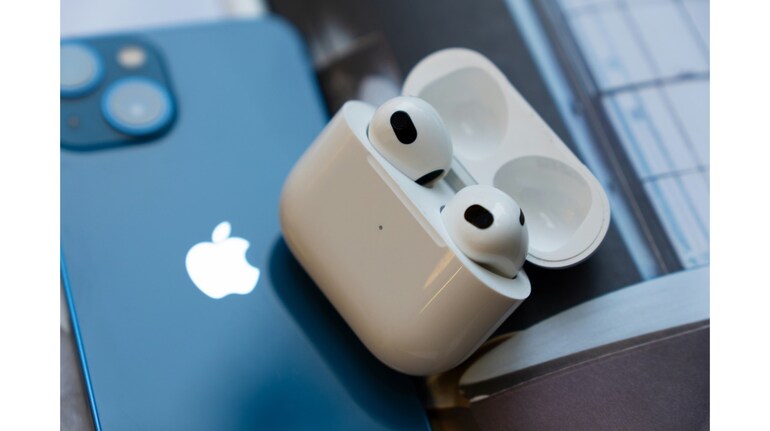
Want to listen to music or watch a movie with someone—without sharing earbuds? Apple makes it easy to share audio wirelessly between two sets of AirPods or Beats headphones. Whether you’re on a flight or just binge-watching on the couch, here’s how to do it.
Before sharing audio on AirPods, ensure your devices are compatible
You’ll need:
•An iPhone 8 or later, or an iPad running iOS/iPadOS 13 or higher
•Two pairs of compatible headphones (AirPods, AirPods Pro, AirPods Max, or certain Beats models like Powerbeats Pro)
Follow these steps to share audio on AirPods:
Connect the first pair of AirPods
Just open the case near your device and follow the on-screen instructions to connect. If they’re already paired, they’ll connect automatically when worn.
Open the Control Centre
Swipe down from the top-right corner of your screen (or up from the bottom on older devices). Tap the AirPlay icon in the audio card (the little triangle with circles above it).
Tap “Share Audio”
You’ll see a “Share Audio” option appear below your current headphones. With the second pair nearby, open their case or place them close to the device.
When prompted, tap “Share Audio” again to confirm.
Control volume for each pair
Once connected, you’ll see separate volume sliders for both headphones. You can control them individually—perfect if one of you prefers things louder.
Things to keep in mind
Audio sharing works even during video calls, YouTube streaming, or offline playback from Apple Music and Netflix. There’s no lag, and no need for a headphone splitter.


Discover the latest Business News, Sensex, and Nifty updates. Obtain Personal Finance insights, tax queries, and expert opinions on Moneycontrol or download the Moneycontrol App to stay updated!
Find the best of Al News in one place, specially curated for you every weekend.
Stay on top of the latest tech trends and biggest startup news.