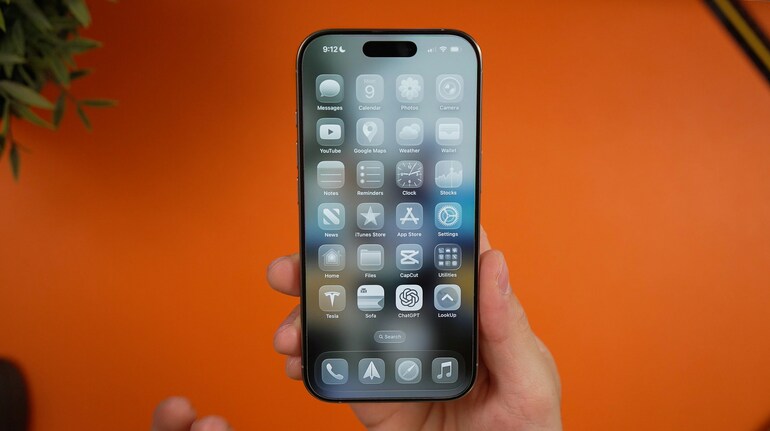
Apple introduced Liquid Glass as a major visual shift with iOS 26, and subsequent updates in iOS 26.1 and iOS 26.2 quietly expanded how much control users have over the look and feel of this new interface style. As more users upgrade to iOS 26 for the first time, Liquid Glass is no longer just a design language you accept by default. It is something you can actively tailor to suit how you want your iPhone to look and feel day to day.
Liquid Glass affects multiple parts of the system, from menus and controls to the Lock Screen itself. While Apple does not offer deep, theme-level customisation, there are two key areas where users can meaningfully shape the experience without relying on third-party tools.
Choosing between Clear and Tinted Liquid Glass styles
The foundation of Liquid Glass customisation lies in choosing between its two visual styles. Apple offers Clear and Tinted variants, both of which are available system-wide.
To access these options, open Settings, go to Display and Brightness, and then tap on Liquid Glass. From here, you can switch between Clear and Tinted and immediately preview how each option changes the interface.
The Clear version leans heavily into transparency. Interface elements such as menus, backgrounds, and panels allow more of your wallpaper and underlying content to show through. This creates a lighter, more futuristic look that feels noticeably different from earlier versions of iOS. It also emphasises depth, with layered visuals that reinforce Apple’s new design direction.
Tinted Liquid Glass takes a more conservative approach. While it still uses the same glass-like effects, it increases opacity and contrast, making elements easier to distinguish at a glance. For users coming from iOS 18, this option feels more familiar and readable, especially in bright environments or when using busy wallpapers.
There is no right or wrong choice here. Clear prioritises aesthetics and visual novelty, while Tinted focuses on legibility and comfort. Apple allows you to switch between the two at any time, so it is worth using each option for a few days before deciding which one suits your usage patterns better.
Customising the Lock Screen clock with Liquid Glass
The Lock Screen is one of the most frequently viewed parts of iOS, and iOS 26 extends Liquid Glass customisation here as well. Apple has added a glass-style clock option that lets you fine-tune how prominent or subtle the Lock Screen time appears.
To customise it, long-press on your Lock Screen wallpaper until the editing interface appears, then tap Customize. Select the clock element, and you will see design options including Solid and Glass. Choosing Glass applies the Liquid Glass effect to the clock itself.
Once Glass is selected, an additional slider appears above the style options. This slider controls transparency, allowing you to make the clock more see-through or more opaque depending on your preference. A more transparent setting blends the clock into the wallpaper, while higher opacity improves visibility without abandoning the glass effect.
Apple has also enabled size adjustments for the default clock font. By grabbing the small drag handle in the bottom-right corner of the clock, you can stretch it vertically to make the time appear larger on the screen. This is particularly useful if you want the Lock Screen to prioritise readability without changing fonts or layouts.
Why Liquid Glass customisation matters
Liquid Glass represents a broader shift in how Apple thinks about interface design. Rather than offering extensive theming options, Apple is focusing on controlled personalisation that preserves consistency across the system. The options available in iOS 26 strike a balance between individuality and platform coherence.
For users who prefer a cleaner, more expressive look, Clear Liquid Glass paired with a transparent Lock Screen clock creates a striking aesthetic. For those who value clarity and familiarity, Tinted Liquid Glass with a more opaque clock offers a safer, more traditional experience.


Discover the latest Business News, Sensex, and Nifty updates. Obtain Personal Finance insights, tax queries, and expert opinions on Moneycontrol or download the Moneycontrol App to stay updated!
Find the best of Al News in one place, specially curated for you every weekend.
Stay on top of the latest tech trends and biggest startup news.