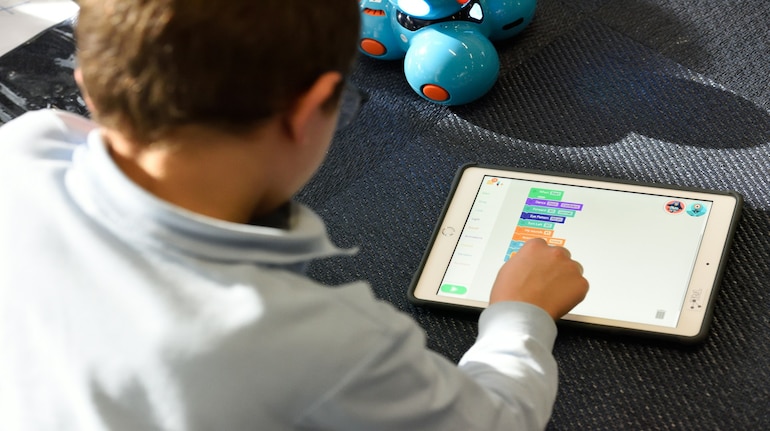

Handing down an old iPhone or iPad to your child can feel straightforward: wipe it, sign in, and you’re done. In reality, that approach leaves plenty of gaps. Without the right setup, children can stumble into unrestricted web access, accidental purchases, or even your own synced messages and photos. Apple’s ecosystem assumes devices are deeply personal, so taking a few extra steps before handing one over really matters.
The good news is that Apple already provides most of the tools parents need. You just have to know where to find them and how to use them effectively.
Start with a child Apple Account and Family Sharing
The foundation of a child-safe setup is creating a dedicated Apple Account for your child. This enables age-based controls, location sharing, and remote management features that simply don’t work if they’re using your Apple ID.
Once that’s done, enable Family Sharing. This lets you approve or deny app downloads, share subscriptions like Apple Music or Apple TV+, track the device if it’s lost, and manage Screen Time settings directly from your own phone. It also avoids the cost and complexity of maintaining separate subscriptions.
Use Screen Time as your main control panel
Screen Time is where most parental controls live. From here, you can manage app usage, restrict content, and set downtime hours when the device can’t be used.
For younger children, this often means blocking Safari entirely and limiting access to only a handful of approved apps. As kids grow older, Screen Time becomes more about setting reasonable limits rather than strict restrictions. You can cap daily usage for games or social apps, schedule downtime for school nights, and fine-tune what kind of content is allowed based on age ratings.
Adjust settings based on your child’s age
Apple’s controls work best when they evolve with your child. For children aged three to seven, it makes sense to keep things tightly locked down, blocking web access and preventing new app downloads altogether. Between eight and twelve, you can allow Messages while controlling who they can communicate with and enabling Communication Safety features.
For teenagers, the focus shifts to balance. App Limits can keep social media in check, while Downtime helps prevent late-night scrolling. Content restrictions can be relaxed, but they’re still useful for filtering explicit material.
Lock down security and access
Even a child-friendly device needs basic security. Set a passcode that your child knows, and enable Face ID or Touch ID if the device supports it. This prevents casual access by others and reinforces good habits around device security.
It’s also worth explaining why these protections exist. Children are more likely to respect limits if they understand that the goal is safety, not punishment.
Clean up your own data before handing it over
Before your child gets the device, make sure your own digital footprint is completely removed. Sign out of your Apple ID, disable iCloud syncing for Messages and Photos, and erase the device properly. Double-check that FaceTime and iMessage are turned off and that the device no longer appears under your Apple ID on your current phone.
This step is easy to overlook, but it’s crucial. Forgetting it can mean your child continues to receive your messages or photos without you realising.
Final checks before you hand it over
Before calling it done, confirm that Ask to Buy is enabled, unrestricted web access is disabled, and Screen Time limits are active. These small details make a big difference in day-to-day use.
With the right setup, an old iPhone or iPad can become a safe, useful device for your child rather than a source of constant worry. Apple’s parental controls are powerful, but only if you take the time to use them properly.


Discover the latest Business News, Sensex, and Nifty updates. Obtain Personal Finance insights, tax queries, and expert opinions on Moneycontrol or download the Moneycontrol App to stay updated!
Find the best of Al News in one place, specially curated for you every weekend.
Stay on top of the latest tech trends and biggest startup news.