-
My Account









6 tried and tested tricks to speed up a slow Windows laptop
Windows machines degrade in speed because of cumulative background tasks, storage fragmentation, telemetry, and thermal throttling. You do not need to reset or upgrade hardware to restore a usable baseline first. These six interventions are reversible and system-native.




1/6
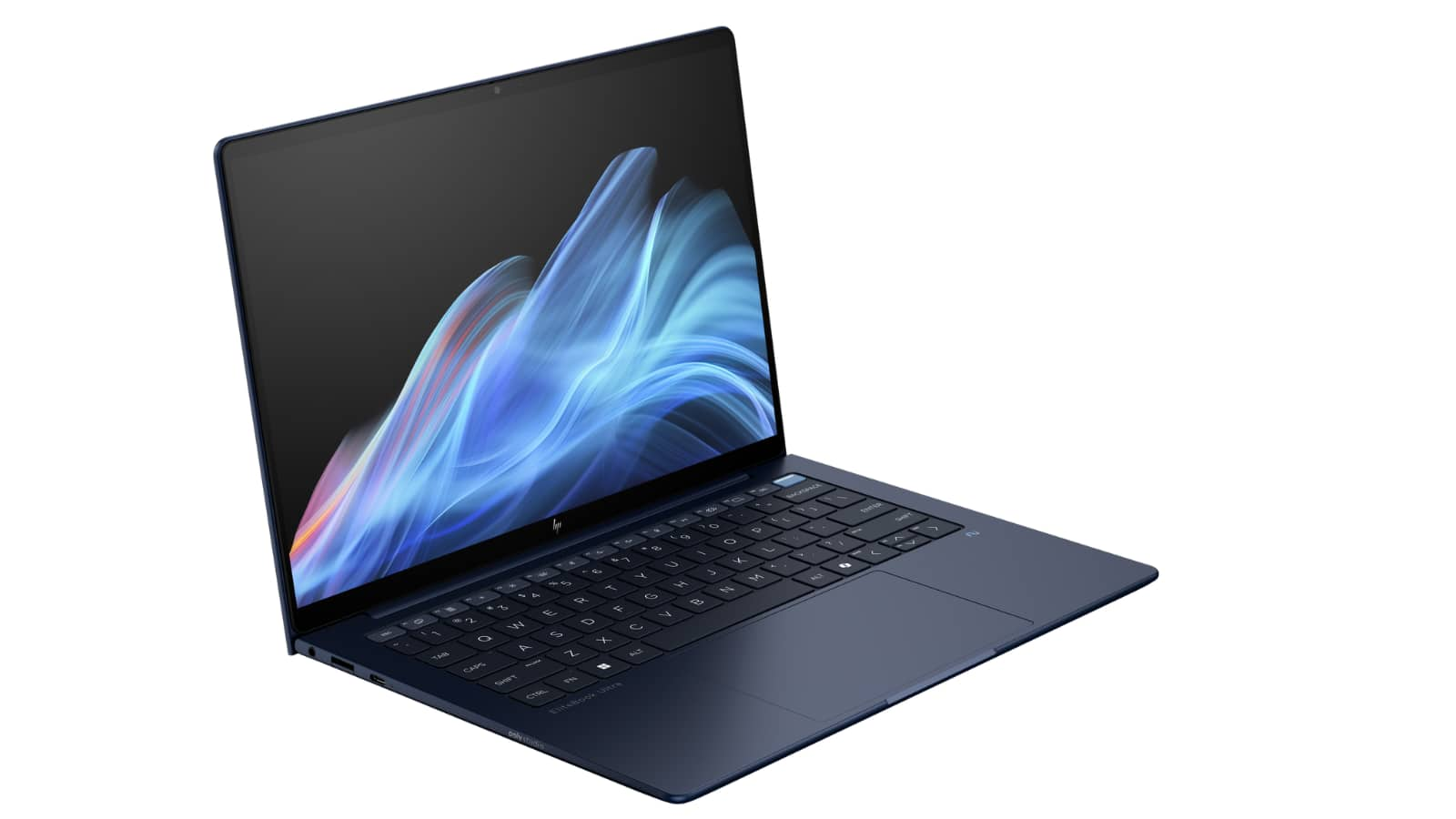
Trim startup and scheduled background apps
Open Task Manager → Startup apps → Disable anything non-critical. Then in Settings → Apps → Advanced app settings → Background apps, set most to “Never”. This removes hidden wake-ups that consume RAM and I/O.
Open Task Manager → Startup apps → Disable anything non-critical. Then in Settings → Apps → Advanced app settings → Background apps, set most to “Never”. This removes hidden wake-ups that consume RAM and I/O.
2/6

Turn on Storage Sense with aggressive rules
Settings → System → Storage → Storage Sense. Enable and choose “Every day” for cleanup cadence and set Downloads purge window to a short interval if safe for your workflow. This reclaims I/O headroom.
Settings → System → Storage → Storage Sense. Enable and choose “Every day” for cleanup cadence and set Downloads purge window to a short interval if safe for your workflow. This reclaims I/O headroom.
3/6

Move browser tabs to sleep and cap extensions
Modern browsers are the longest-running resident process. Enable tab sleeping and remove heavy extensions. Keeping browsers as the “only heavy thing” often surfaces a visible lift across the system.
Modern browsers are the longest-running resident process. Enable tab sleeping and remove heavy extensions. Keeping browsers as the “only heavy thing” often surfaces a visible lift across the system.
4/6

Use per-app GPU/Power policy to de-stress thermals
Settings → System → Display → Graphics → per-app. Force non-critical apps to the integrated GPU and set their power mode to “Power saving”. Thermals improve, letting bursts clock higher for the foreground task.
Settings → System → Display → Graphics → per-app. Force non-critical apps to the integrated GPU and set their power mode to “Power saving”. Thermals improve, letting bursts clock higher for the foreground task.
5/6

Indexing scope cut and on-demand search
Settings → Privacy & Security → Searching Windows → Advanced indexing. Exclude large folders (Git repos, RAW media) and switch to Classic. This stops the indexer from grinding the disk.
Settings → Privacy & Security → Searching Windows → Advanced indexing. Exclude large folders (Git repos, RAW media) and switch to Classic. This stops the indexer from grinding the disk.
6/6

Reset Windows Update queue without reset
A corrupt update queue slows the servicing stack. Use wuauserv + bits stop, delete SoftwareDistribution + Catroot2, then start services. This clears the spool without reinstall.
A corrupt update queue slows the servicing stack. Use wuauserv + bits stop, delete SoftwareDistribution + Catroot2, then start services. This clears the spool without reinstall.
Discover the latest Business News, Budget 2025 News, Sensex, and Nifty updates. Obtain Personal Finance insights, tax queries, and expert opinions on Moneycontrol or download the Moneycontrol App to stay updated!



