- My Alerts
- Go Ad-Free
-
My Account












How to use your iPhone as a microphone for your Mac: A step-by-step guide
Apple’s Continuity Camera isn’t just about turning your iPhone into a pro-grade webcam — it can also double as a wireless microphone for your Mac. Here’s how to set it up and start using your iPhone mic with crystal-clear quality, perfect for Zoom calls, podcasts, or voiceovers.




1/7
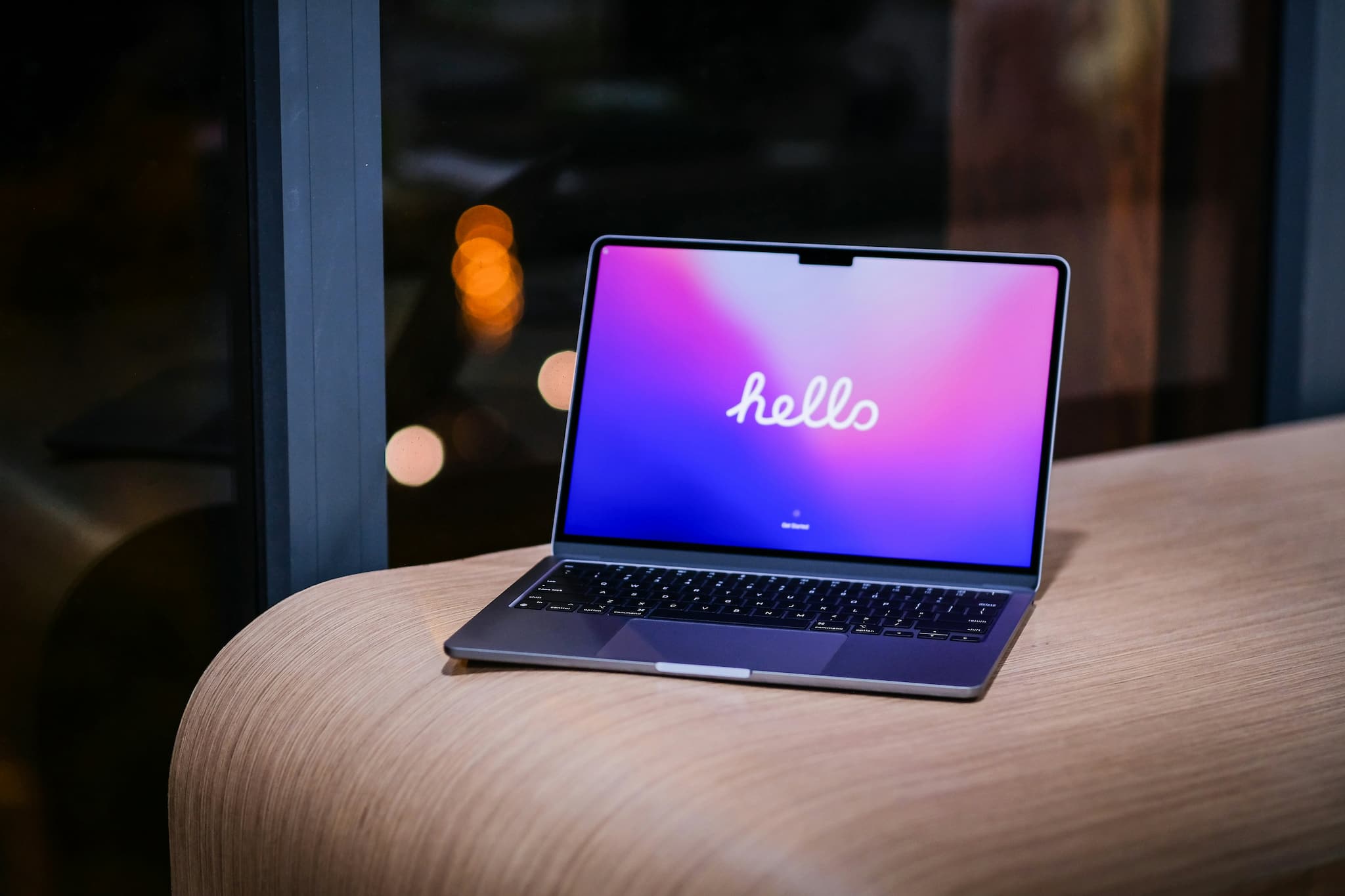
Check the Basics First
Ensure your iPhone is running iOS 16 or later, and your Mac is on macOS Ventura or newer. Both devices must be signed into the same Apple ID and have Bluetooth and Wi-Fi turned on
2/7
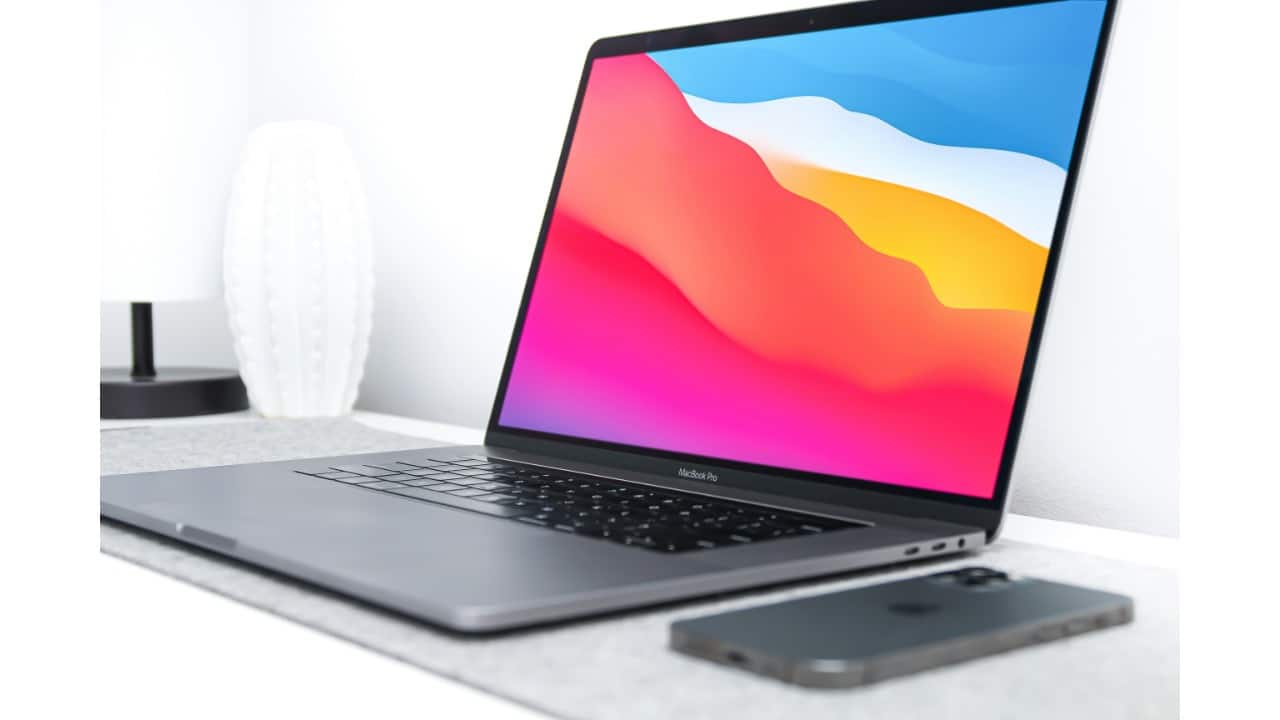
Open System Settings on Your Mac
Click the Apple () menu in the top-left corner of your Mac screen and select System Settings… from the dropdown
3/7

Go to the Sound Settings
In the sidebar, click on Sound, then head to the Input tab under the “Output & Input” section. This is where you’ll choose your audio input device.
4/7

Select Your iPhone from the List
Your nearby iPhone should appear under available input devices with Type: Continuity Camera. Click it.
5/7
![Your iPhone Will Ping and Connect Once selected, your iPhone will play a short chime and display a “Connected to [Mac name]” screen. It’s now acting as your Mac’s microphone.](https://images.moneycontrol.com/static-mcnews/2025/07/20250714122832_macbook8.jpg "Your iPhone Will Ping and Connect Once selected, your iPhone will play a short chime and display a “Connected to [Mac name]” screen. It’s now acting as your Mac’s microphone.")
Your iPhone Will Ping and Connect
Once selected, your iPhone will play a short chime and display a “Connected to [Mac name]” screen. It’s now acting as your Mac’s microphone.
6/7

Pause or End the Connection Anytime
Need a break? Tap Pause on your iPhone screen to temporarily mute the mic. When you’re done, simply hit the red Disconnect button to end the session.
7/7
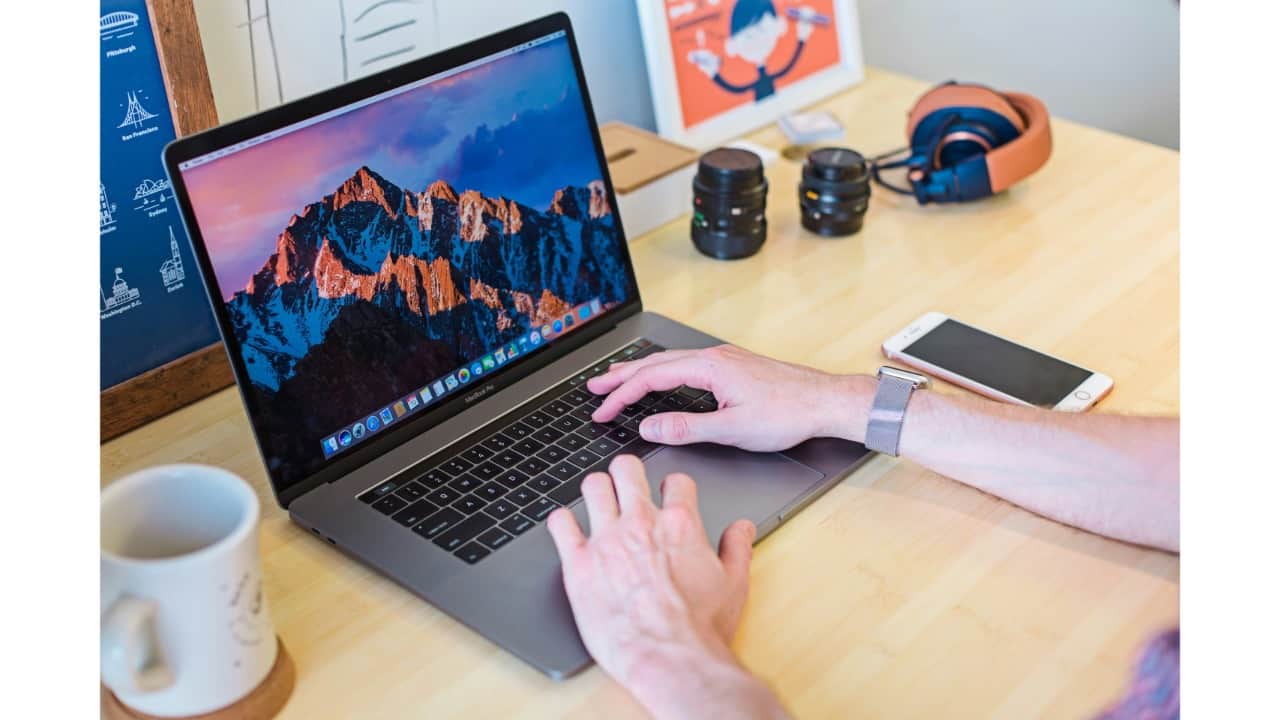
Use It Anywhere — Not Just FaceTime
This feature works across most audio and video apps, including Zoom, Teams, GarageBand, QuickTime, and more — no third-party app required.
Discover the latest Business News, Budget 2025 News, Sensex, and Nifty updates. Obtain Personal Finance insights, tax queries, and expert opinions on Moneycontrol or download the Moneycontrol App to stay updated!



