- My Alerts
- Go Ad-Free
-
My Account












ChatGPT photo editing prompts: 6 commands you should know for better image generation in 2025
ChatGPT’s image-editing tool lets you transform photos with simple prompts — from removing unwanted objects to adding elements, changing colors, or applying artistic styles — all without needing advanced skills.




1/6

Remove the unwanted object
If you want to clear something from your photo — a garbage can in the background or a person you’d like gone — you can simply prompt, “Remove the garbage can from the photo.” The tool will erase it and blend the surroundings smoothly.
If you want to clear something from your photo — a garbage can in the background or a person you’d like gone — you can simply prompt, “Remove the garbage can from the photo.” The tool will erase it and blend the surroundings smoothly.
2/6
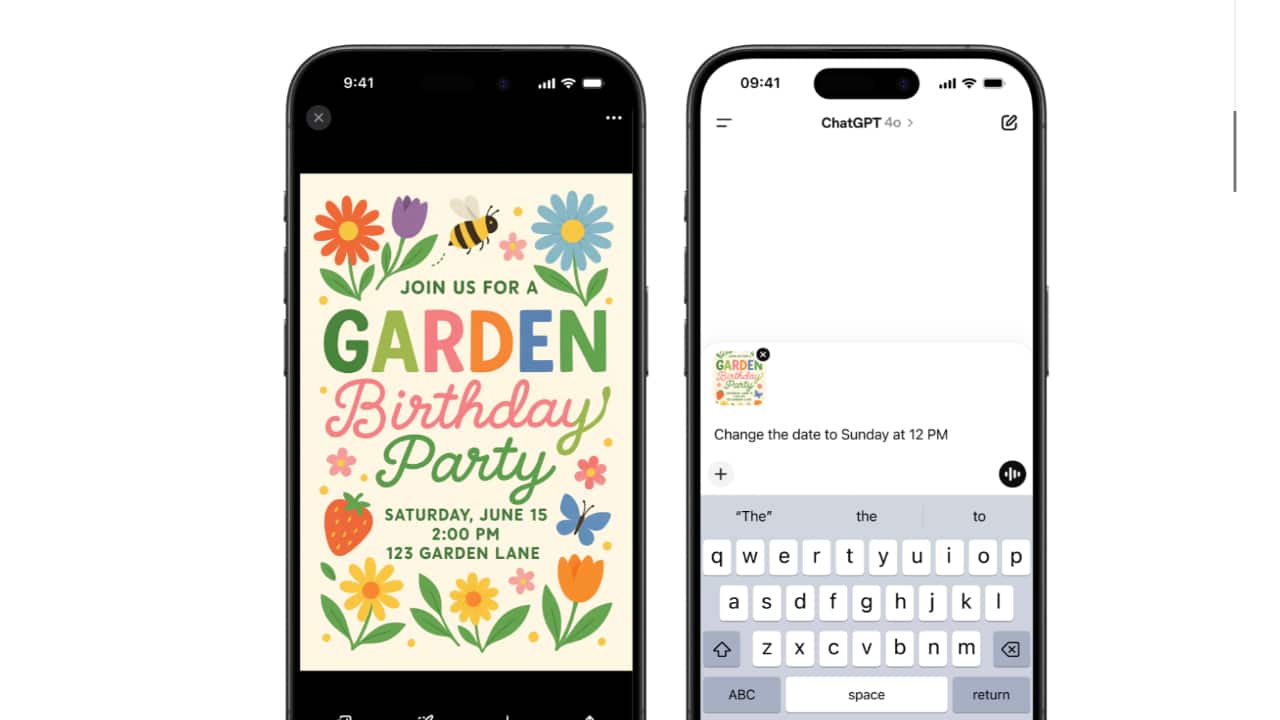
Change colour of an object
Your photo might look better with a different colour. If you want a red car to be blue, you can prompt, “Change the colour of the car to blue.” The tool will adjust it while keeping the texture and lighting consistent.
Your photo might look better with a different colour. If you want a red car to be blue, you can prompt, “Change the colour of the car to blue.” The tool will adjust it while keeping the texture and lighting consistent.
3/6
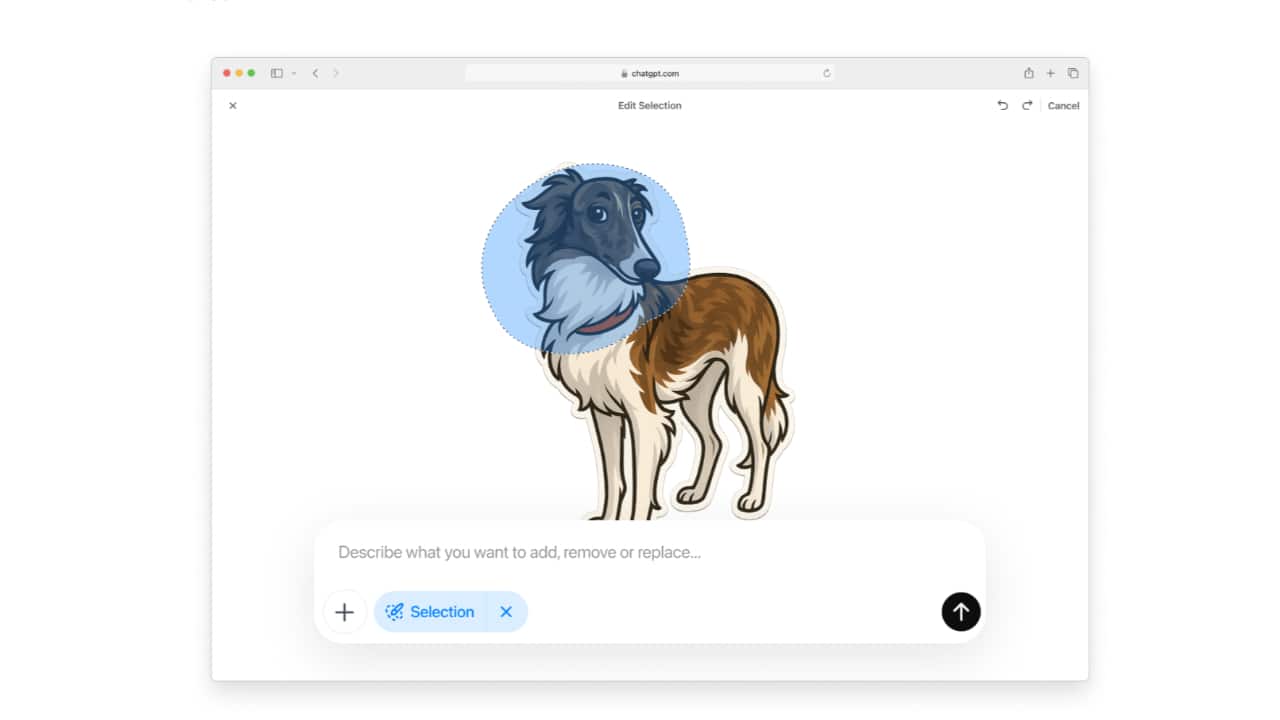
Add a small element
Sometimes adding something tiny — a flower in a vase or a hat on someone — can enhance a photo’s story. Try prompting, “Add a small flower on the table.”
Sometimes adding something tiny — a flower in a vase or a hat on someone — can enhance a photo’s story. Try prompting, “Add a small flower on the table.”
4/6

Expand background
Want more space around your photo’s borders? Say, “Expand the background on all sides.” The tool will generate additional details to match the scene.
Want more space around your photo’s borders? Say, “Expand the background on all sides.” The tool will generate additional details to match the scene.
5/6
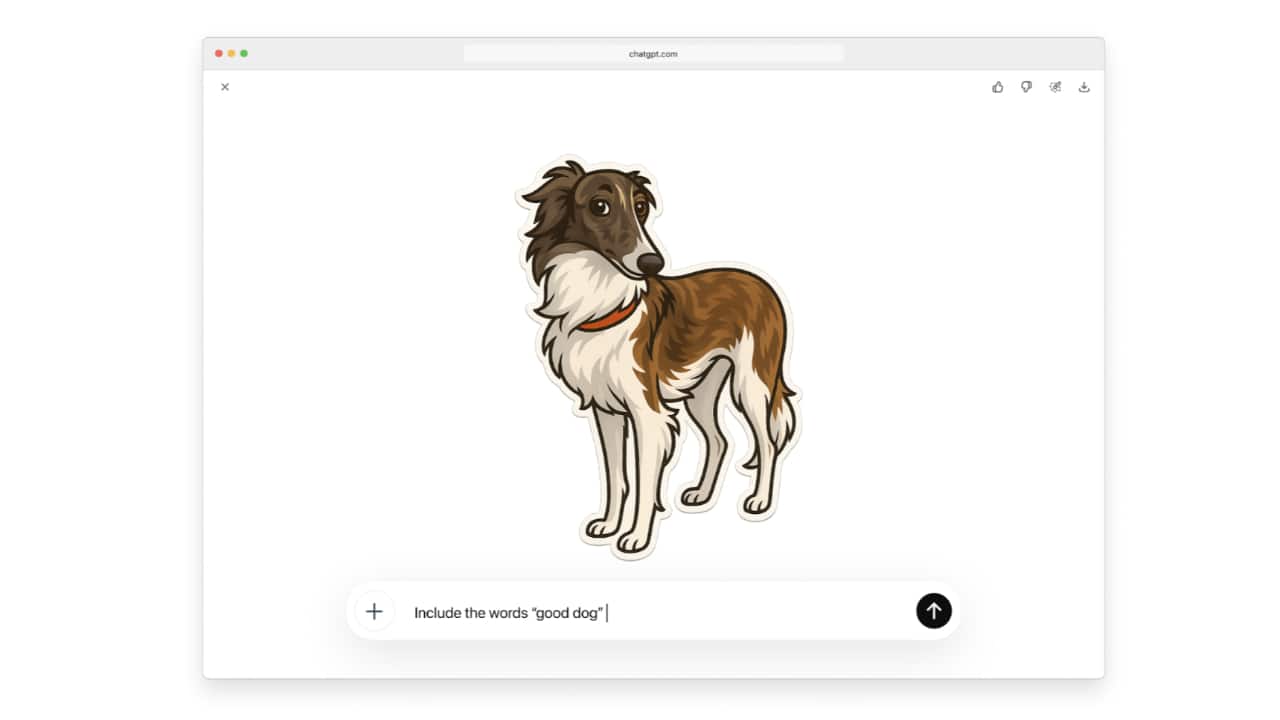
Brighten or darken photo
If your photo is a bit dim or washed out, you can prompt, “Brighten the photo” or “Make the photo darker” to adjust the lighting quickly.
If your photo is a bit dim or washed out, you can prompt, “Brighten the photo” or “Make the photo darker” to adjust the lighting quickly.
6/6
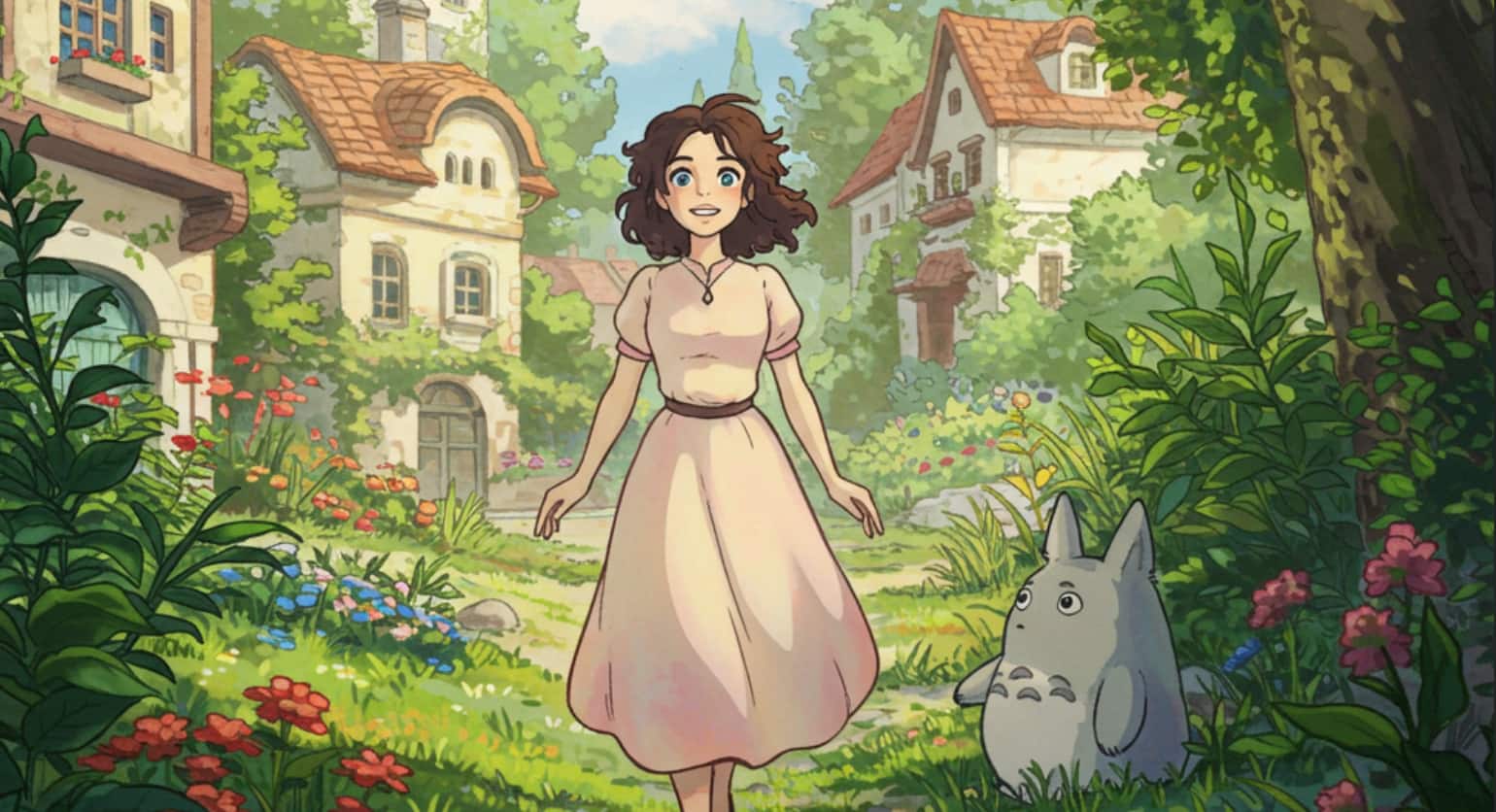
Apply artistic style
If you want your photo to resemble a painting or a comic, you can say, “Transform photo into a watercolour painting” or “Make it look like a comic book scene.”
If you want your photo to resemble a painting or a comic, you can say, “Transform photo into a watercolour painting” or “Make it look like a comic book scene.”
Discover the latest Business News, Budget 2025 News, Sensex, and Nifty updates. Obtain Personal Finance insights, tax queries, and expert opinions on Moneycontrol or download the Moneycontrol App to stay updated!



