Google Gemini's AI image editing feature allows you to enhance your phone's photographs using simple text commands. This guide breaks down the process into easy-to-follow steps, from accessing the feature to using specific prompts to achieve professional results. You can now go beyond basic filters to refine your images with precision, all from your mobile device.
Step 1: Access Google Gemini's AI editing feature
First, ensure you have the latest version of the Google Photos app installed on your phone. Open Google Photos and select the image you want to edit. Look for the "Help me edit" or a similar AI-assisted editing option, typically found within the editing tools. Tap this option to open a conversational interface where you can enter your prompts.
Step 2: Understand the power of conversational prompts
The AI responds to descriptive language. Instead of clicking buttons, you will tell the AI what you want to achieve. Be specific with your requests to get the best results. For example, instead of "make it better," use "increase the contrast and add a soft glow to the subject."
Step 3: Use specific prompts for professional results
You can use a variety of prompts to control different aspects of your photo.
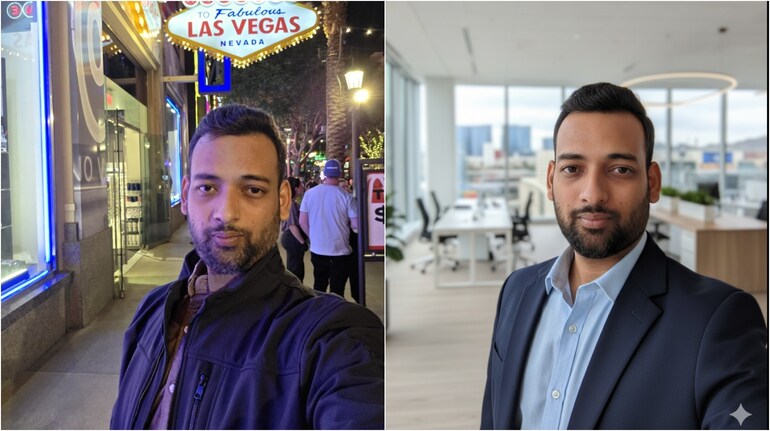
"Transform my selfie into a fresh but professional image suitable for a social media profile. The lighting should be natural, flattering, and multidimensional. My head is slightly tilted so it doesn't look stiff and it should look like I'm in a modern, bright office with a blurred background."
For lighting and mood:
"Change the lighting to a dramatic, high-contrast style."
"Add a cinematic, muted color palette."
"Softly increase the brightness of the main subject."
For background and focus:
"Blur the background to create a shallow depth of field."
"Remove the distracting person in the background."
"Isolate the subject and make them stand out."
For style and artistic effects:
"Apply a vintage, film-like aesthetic."
"Convert this photo into a pencil sketch."
"Add a watercolor effect to the scene."
Step 4: Refine and adjust
After the AI processes your initial prompt, you can continue to refine the image with further commands. For instance, if you asked for a "cinematic" look, you can then say "make the shadows deeper" or "slightly increase the color saturation." The AI will build upon your previous requests.
Step 5: Save your professional photo
Once you are satisfied with the edits, you can save the new version of your photo. The AI will provide an edited image based on your prompts. You can choose to save the changes or go back to the original if needed.


Discover the latest Business News, Sensex, and Nifty updates. Obtain Personal Finance insights, tax queries, and expert opinions on Moneycontrol or download the Moneycontrol App to stay updated!
Find the best of Al News in one place, specially curated for you every weekend.
Stay on top of the latest tech trends and biggest startup news.