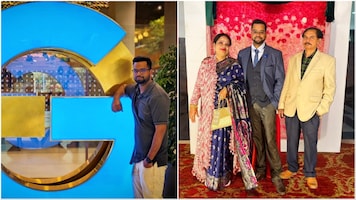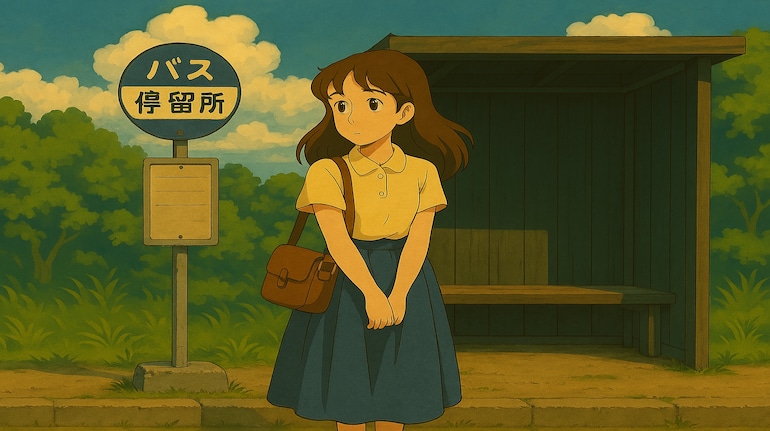
It might be a little late for Microsoft, but the feature has arrived, and Copilot can now convert your regular photos into Ghibli-inspired and several other art formats like cyberpunk, watercolour, oil painting, pixel art, etc as a part of its recently acquired image editing capabilities.
Not only that, Copilot can also edit your photos and make certain changes like changing the background, removing an object, changing colour tones, etc.
Here’s our detailed guide on how you can use Copilot to edit images.
Microsoft Copilot supported art styles
Ghibli-Inspired – Whimsical, warm, and storybook-like magic.
Impressionist – Soft, dreamy brush strokes like Monet.
Watercolour – Gentle, flowing colours for a delicate touch.
Cyberpunk – Futuristic, neon-lit city vibes.
Anime-inspired – Vibrant and stylised, with a cinematic feel.
Oil Painting – Rich textures and bold strokes.
Pixel Art – Retro, 8-bit gaming style.
Fantasy Landscape – Majestic, otherworldly scenery.
Ink Sketch – Detailed black-and-white line work.
How to access Microsoft Copilot’s image editing feature
The updated image editing capabilities of Microsoft Copilot are available everywhere – Copilot app, Copilot web, Copilot on Edge, Copilot on PCs and so on.
To access the feature, use it in one of the places most convenient to you. We will demonstrate the steps using Copilot on the web.
Head to “https://copilot.microsoft.com/” using any web browser
Log in using a Microsoft Account
Now, click on the “+” icon and upload an image.
Now, enter the prompt – with changes or conversions you want (refer to the sample prompts below)
Wait for Copilot to process the command and generate an image for you.
Make adjustments with the command prompt to make changes to the images.
Limitations
We checked, and Microsoft does not have any set number limitations on how many photos you can generate or convert in a day. However, it can be some temporary limitations to adjust the server load if you are generating too many images at a time.
Prompt ideas to try
Ghibli-Inspired Magic – Turn your photo into a soft, whimsical scene with dreamy lighting, lush greenery, and warm, nostalgic tones, evoking the charm of a Studio Ghibli landscape.
Cyberpunk Neon Glow – Transform your image into a futuristic cityscape filled with glowing neon signs, deep shadows, and rain-soaked streets, perfect for a high-tech dystopian vibe.
Watercolour Serenity – Convert your photo into a delicate watercolour painting, with soft brush strokes, gentle gradients, and an airy, flowing texture that brings a soothing, artistic feel.
Fantasy Realm Wonder – Reimagine your picture as an enchanted landscape with mythical creatures, towering castles, or mystical forests bathed in ethereal light.
Impressionist Dream – Give your photo a classic Impressionist makeover, with vibrant colours, visible brushwork, and soft, blended textures reminiscent of Monet’s masterpieces.
Keep in mind that these are sample prompts for reference purposes, you can change them according to your needs and requirements.
How good are the image conversions
We tried converting several images into Ghibli style, and for the most part, the images appear to be well-detailed and properly processed. However, it is an AI tool and can make mistakes. So, you’ll need to keep that in mind. Take a look at the image below.
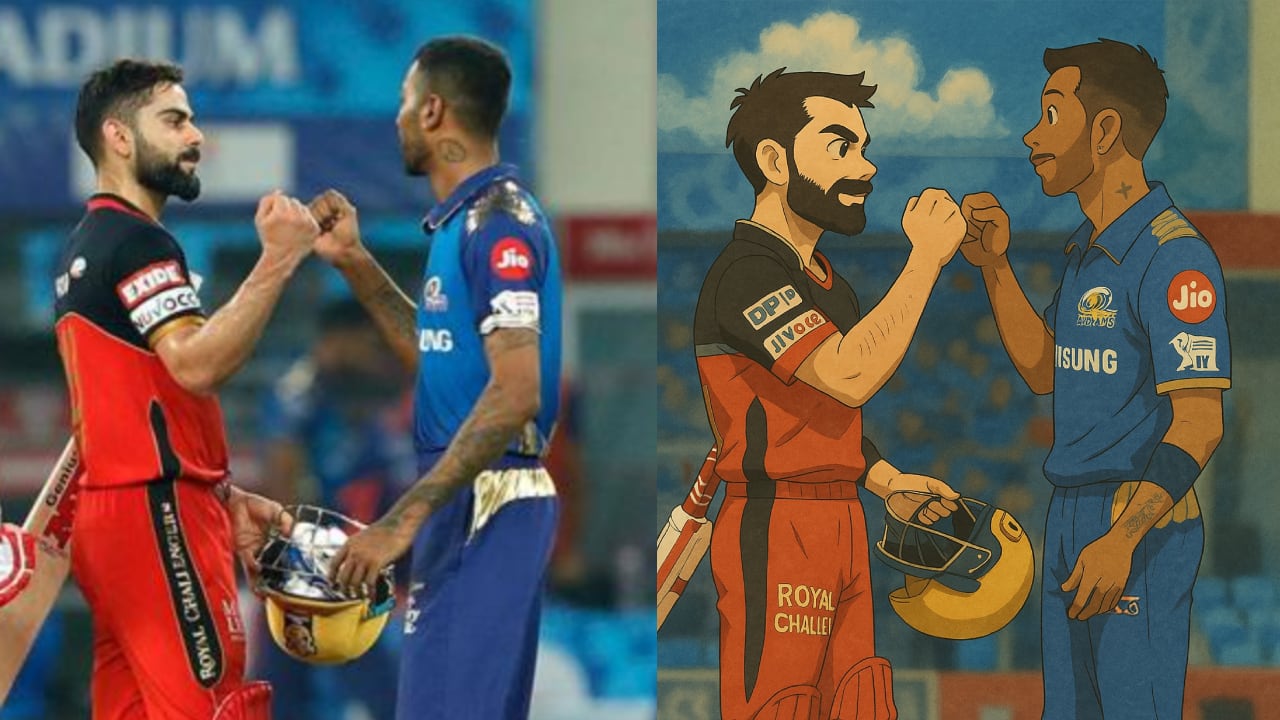 Copilot Ghibli art


Discover the latest Business News, Sensex, and Nifty updates. Obtain Personal Finance insights, tax queries, and expert opinions on Moneycontrol or download the Moneycontrol App to stay updated!
Find the best of Al News in one place, specially curated for you every weekend.
Stay on top of the latest tech trends and biggest startup news.