

Microsoft’s new generation of Windows 11 PCs features a dedicated Copilot key for quick access to AI features. However, with changes in Microsoft’s AI strategy, the Copilot key no longer launches the built-in Copilot app by default. If you prefer using another AI assistant, such as OpenAI’s ChatGPT, Windows 11 now allows you to reassign the Copilot key to launch a different AI chatbot. Here’s how you can do it.
How to remap the Copilot key to ChatGPT
To reassign the Copilot key to launch the ChatGPT app instead of Microsoft Copilot, your device must be running Windows 11 version 24H2 or later. Also, the setting is only available on devices that include a dedicated Copilot key on the keyboard.
- Open Settings on your Windows 11 PC.
- Navigate to Personalisation> Text input.
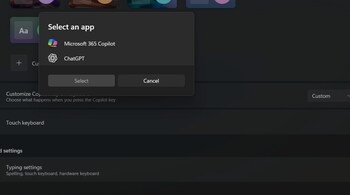
- Under the “Customise Copilot key on keyboard” section, choose the Custom option.
- Select ChatGPT from the app list.
- Click Select to confirm.
After completing these steps, pressing the Copilot key on your keyboard will launch the official ChatGPT desktop app instead of Windows Copilot.
Requirements and limitations
This customisation only works with the official ChatGPT desktop app, not with the Progressive Web App (PWA) versions installed via Edge or Chrome.
You must have a valid subscription to ChatGPT Plus, Team, Enterprise, or Education to install the official app.
The remapping feature requires Windows 11 version 24H2 with the November 2024 cumulative update or newer.
If you don’t see the setting, check for system updates or verify that your keyboard includes the Copilot key.
Alternate method for web app users
If you use ChatGPT as a web app, you can still access it quickly by pinning the app to the Taskbar. Then, use the shortcut Windows key + [number] (based on its position on the Taskbar) to open it.
Uninstalling Copilot
To fully transition to a different AI assistant, you can uninstall the Microsoft Copilot app:
Go to Settings > Apps > Installed apps.
Find Copilot, click the three-dot menu, and select Uninstall.
This flexibility allows Windows 11 users to choose their preferred AI assistant and tailor their device to better suit personal workflows.
Discover the latest Business News, Sensex, and Nifty updates. Obtain Personal Finance insights, tax queries, and expert opinions on Moneycontrol or download the Moneycontrol App to stay updated!





