

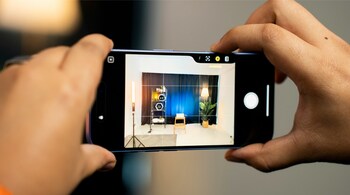


Apple has continued refining the physical controls on the iPhone, and with the iPhone 17 lineup, the Camera Control button has become a central part of the photography experience. Introduced with the iPhone 16 series and now standard across all iPhone 17 models, this dedicated button is designed to make shooting photos and videos faster, more tactile and more precise, whether you are holding the phone in portrait or landscape orientation.
Placed on the lower right edge of the phone when held upright, Camera Control behaves like a modern, pressure-sensitive shutter. A single press launches the Camera app when the phone is unlocked. Pressing it again takes a photo, while pressing and holding starts video recording and continues for as long as the button is held down. The behaviour feels familiar to anyone who has used a traditional camera, and that is very much the point.
Once inside the Camera app, Camera Control becomes more than just a shutter. A light press triggers a subtle haptic click and activates a sliding interface that lets you adjust settings such as exposure and zoom. At the same time, the interface hides most on-screen controls, giving you a clean preview of your frame. This makes composing a shot easier and reduces the chances of accidentally touching on-screen sliders while shooting.
A light double press brings up a compact adjustment menu that you can swipe through. From here, you can fine-tune exposure, depth and zoom, switch between cameras, and adjust styles and tone. Each option is controlled with simple swipe gestures, and another double light press returns you to the main Camera Control view.
Camera Control is not limited to Apple’s own Camera app. It can also trigger compatible third-party camera apps, making it useful for users who rely on specialised photography tools. It is also tied into Visual Intelligence, part of Apple Intelligence. A long press can analyse what the camera sees and surface contextual information about objects or scenes in front of you.
For users who want more control, Camera Control can also lock auto exposure and auto focus. This option is disabled by default, but can be enabled in Settings under Camera, then Camera Control. Once switched on, a light press locks exposure and focus, allowing you to reframe your shot without losing the original settings.
Apple has also made Camera Control highly configurable. If the light press feels too sensitive or not responsive enough, you can adjust how much pressure the button requires. This setting lives under Accessibility, in the Camera Control menu, where you can choose between lighter or firmer press options and test them without opening the Camera app.
By default, Camera Control activates Clean Preview mode, which hides all on-screen camera controls during a light press. While this is ideal for distraction-free shooting, it can be disabled if you prefer full access to camera tools at all times. There is also an option to completely disable light-press adjustments, turning Camera Control into a simple shutter button for fast-paced shooting situations.
The button’s launch behaviour can also be changed. If you keep opening the Camera app accidentally, you can switch the launch gesture from a single click to a double click. You can even reassign the button to launch tools such as the QR code scanner or Magnifier, making it useful beyond photography. In work environments or accessibility scenarios, this flexibility can be genuinely valuable.
There is also a Require Screen On toggle that prevents the Camera app from opening unless the display is already awake, reducing accidental activations. And for users who simply do not get along with the button at all, Camera Control can be disabled entirely via Accessibility settings.
Camera Control is not meant to replace touch controls, but to complement them. It introduces a two-stage shutter to the iPhone, something photographers have long asked for, and rewards users who take the time to learn its pressure-based behaviour. Like many Apple features, it feels subtle at first, but becomes more useful the longer you use it.
Discover the latest Business News, Sensex, and Nifty updates. Obtain Personal Finance insights, tax queries, and expert opinions on Moneycontrol or download the Moneycontrol App to stay updated!





