

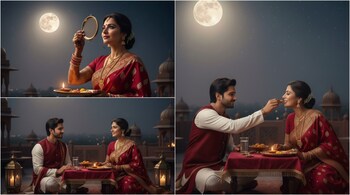
Karwa Chauth is among India’s most celebrated festivals, marked by fasting, rituals, and vibrant visuals. This year, many are turning to Gemini Nano Banana AI Studio, Google’s image-generation tool, to create personalized Karwa Chauth photos. Using the tool, users can transform ordinary portraits into traditional festive images with realistic details.
How to access Gemini Nano Banana
Go to Google AI Studio (aistudio.google.com) and select the Gemini Nano Banana or Gemini 2.5 Flash Image model. Log in with your Google account and open the image generation interface. The tool works directly from your browser and supports text-based prompts for detailed customization.
Steps to create your Karwa Chauth image
1. Upload a clear photo: Choose a well-lit portrait or selfie with your face clearly visible. The tool uses this image to maintain your likeness.
2. Write your prompt: Describe the look and setting you want. For example:
“Generate a portrait of a woman in a red bridal saree with gold jewelry, holding a pooja thali and sieve under moonlight on a terrace.”
3. Generate and refine: Click Generate to create the image. You can make changes to the background, outfit, or lighting by editing your prompt.
4. Save and share: Download the final image once satisfied. Gemini automatically adds a watermark and metadata tag for transparency.
Safety and tips
Avoid uploading highly personal or sensitive photos, and ensure you use the official Google AI Studio website. If the image doesn’t match your expectation, refine the prompt or use descriptive cues like “cinematic lighting” or “soft moon glow.”
5 promots you should know
1: Photorealistic Festive Night:
"Generate a photorealistic image of the person from the uploaded photo celebrating Karwa Chauth. They are dressed in an elaborate, deep red traditional Indian sari with gold embroidery and intricate mehendi on their hands. They are standing on a dimly lit rooftop under a clear, star-studded night sky with a prominent full moon. The person is looking at the moon through a decorative brass sieve, holding a finely adorned puja thali with a lit diya. Their expression should be serene and devout, with warm moonlight softly illuminating their face. The background subtly features traditional Indian architecture."
2. Romantic Indoor Ritual (Digital Art Style):
"Create a digital art style image of the person from the uploaded photo, as if they are performing the Karwa Chauth ritual indoors. They should be wearing a elegant pink or maroon lehenga-choli with delicate embellishments and mehendi. The scene is softly lit by flickering diyas and perhaps a floor lamp, creating a warm, romantic glow. They are holding a sieve, looking towards a window where a stylized full moon is visible. The background should feature tasteful traditional Indian decor or patterns, slightly out of focus to emphasize the person and the ritual."
3. Vibrant Group Celebration (Cinematic Photograph):
"Produce a cinematic photograph of the person from the uploaded photo participating in a vibrant Karwa Chauth gathering. They are dressed in a brightly colored, festive Indian outfit (e.g., orange, fuchsia, or green sari/lehenga) with celebratory mehendi. They are part of a small group of women on a beautifully decorated outdoor patio or terrace during the early evening, with fairy lights and traditional lanterns. The person is holding their puja thali and sieve, looking towards the sky where a clear full moon is visible. Capture a joyful and communal atmosphere."
4. Artistic Watercolor Devotion:
"Render an artistic watercolor painting of the person from the uploaded photo. They should be depicted in a gracefully flowing traditional Indian outfit, such as an Anarkali suit or a simple sari, in shades of deep blue, green, or purple. They are holding a simple sieve, with the silhouette of a radiant full moon visible through it. The overall style should be soft, ethereal, and contemplative, with the background being a dreamy wash of night sky colors, emphasizing the spiritual aspect of the festival. Focus on a gentle, devoted expression."
5. Elegant Modern Take (Stylized Photograph):
"Generate a stylized photograph of the person from the uploaded photo, giving a contemporary yet elegant Karwa Chauth vibe. They are wearing a chic, modern interpretation of traditional Indian wear (e.g., a contemporary silk gown or a well-draped designer sari in a jewel tone like emerald green or sapphire blue), with subtle, sophisticated mehendi. They are standing near a large window or balcony, with a clear view of a striking full moon. They hold a minimalist, elegant sieve. The setting should be clean and sophisticated, with soft, ambient lighting and a touch of modern Indian aesthetic in the decor."
Discover the latest Business News, Sensex, and Nifty updates. Obtain Personal Finance insights, tax queries, and expert opinions on Moneycontrol or download the Moneycontrol App to stay updated!





