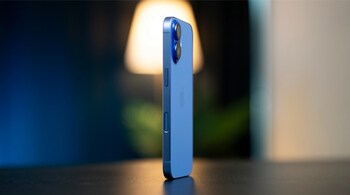
- iOS 26 lets you customise Lock and Home Screens with new icon and clock styles
- Call Screening now asks unknown callers for their name and reason before ringing.
- Apple adds a dedicated Games app and lets users set custom alarm snooze times
Set up your Lock Screen properly The new Liquid Glass design starts at the Lock Screen. Long press on the Lock Screen to enter customisation mode, choose your font and colour for the clock, and enable the Glass effect. You can resize the clock by dragging its corner, which works especially well with photo wallpapers. When selecting wallpapers, try the new Spatial Scene option. It converts supported 2D photos into layered scenes that subtly move as you tilt your iPhone. Finish by placing widgets anywhere on the screen, including near the bottom, and customise Control Centre buttons to match how you actually use your phone.
Story continues below Advertisement
Customise the Home Screen lookLong press on the Home Screen, tap Edit, then choose Customise. iOS 26 introduces Clear, Tinted, and refreshed Default icon styles. Clear icons allow your wallpaper to show through completely, while Tinted offers a softer translucent colour match. Apple also lets you automatically match icon colours to your iPhone or official case.
Turn on Call ScreeningCall Screening adds a much-needed layer of protection against unknown callers. When enabled, your iPhone asks callers to state their name and reason before your phone rings. You can enable this under Settings, Phone, Call Screening. While you are there, review the new spam call and voicemail filtering options.
Explore the new Games appApple has added a dedicated Games app in iOS 26. It collects App Store and Apple Arcade titles in one place and introduces social features such as challenges and shared high scores. Even if you are a casual player, it is worth exploring once.
Story continues below Advertisement
Customise ringtones and alarm snooze timesiOS 26 expands the Reflections ringtone with new variations and adds a new option called Little Bird. You can find these under Settings, Sounds and Haptics, Ringtone. Apple has also finally made alarm snooze duration customisable. Open the Clock app, edit an alarm, and choose a snooze time anywhere between one and fifteen minutes.
Choose your Safari layoutSafari introduces a new Compact tab layout that hides more interface elements. If it feels too minimal, you can switch back to the classic top or bottom tab bar layout from Settings, Safari. This small change can significantly affect browsing comfort.
Discover the latest Business News, Sensex, and Nifty updates. Obtain Personal Finance insights, tax queries, and expert opinions on Moneycontrol or download the Moneycontrol App to stay updated!